How to Add a Translator Bot to Discord on Android & iPhone (Mobile Guide)
Add a translator bot to Discord from your phone: open the invite link, approve Discord's OAuth screen, pick your server, then configure translation from the mobile dashboard or with slash commands.
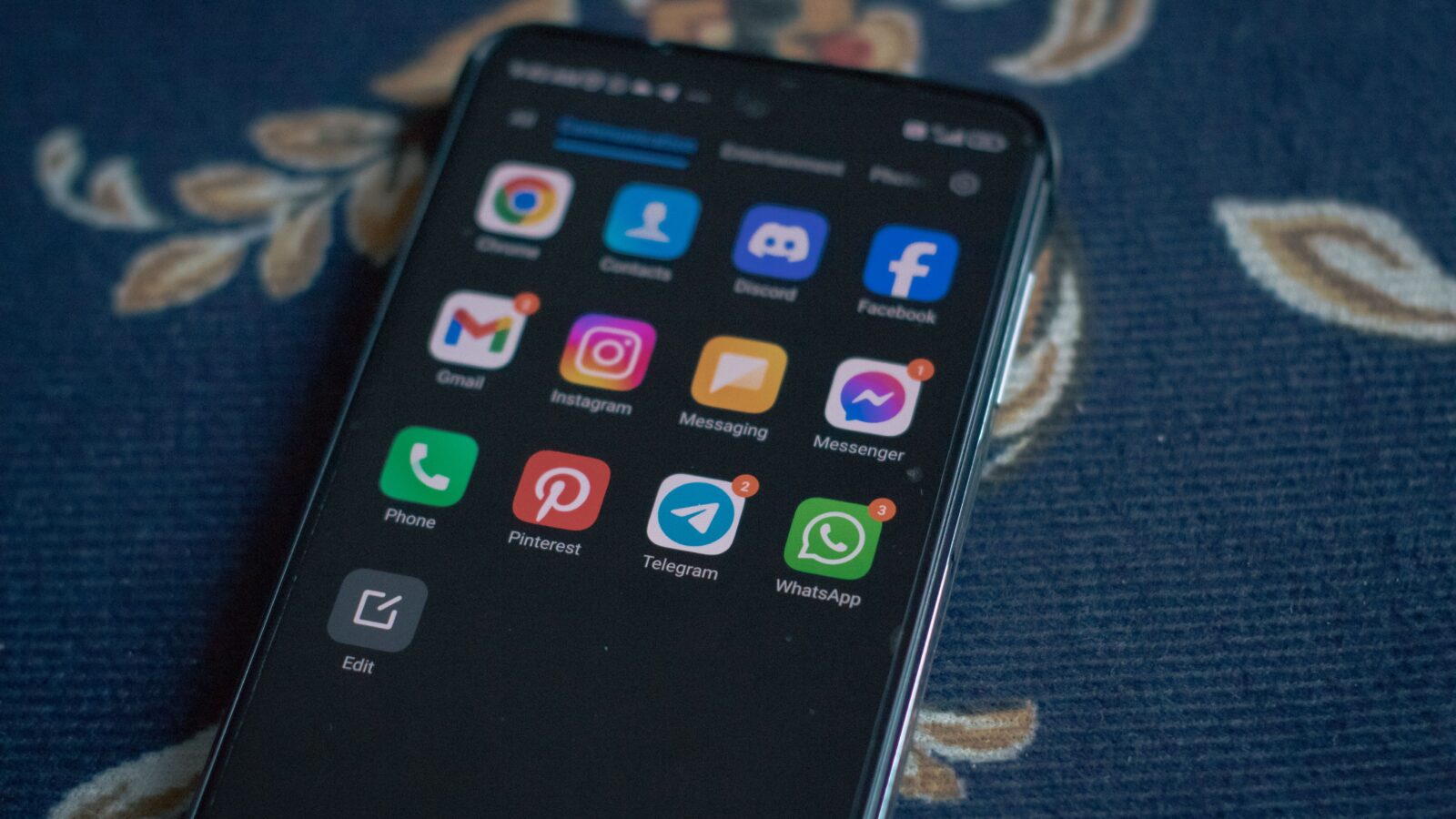
Yes, you can add a translator bot to Discord entirely from your phone. The flow: open the bot’s invite link in a mobile browser, sign in if Discord asks, pick your server on the authorization screen, tap Authorize, then configure translation in the bot’s dashboard or with slash commands typed into the Discord app. No computer required. This guide walks through each step on Android and iPhone using Interaction Bot, active in 55,965 Discord servers per its homepage (retrieved 2026-08-28), as the working example; the same steps apply to any translator bot with a public invite link.
One thing to know up front: adding a bot happens on a Discord web page, not inside the app’s menus. There is no “add a bot” button anywhere in Discord, so the mobile challenge is simply getting through that page correctly on a small screen.
You need two things before you start
- A Discord account that is a member of the server you want the bot to join. The authorization screen only lets you add a bot to a server where your account already has a role.
- A role with the Manage Server permission on that server (Discord’s permission list also calls it Manage Guild), or Administrator. Without one, the server is greyed out in the “Add to server” dropdown and the invite fails, as the desktop walkthrough on this site explains.
Administrator is a shortcut that covers every permission, but Manage Server alone is enough to invite a bot; the why-not-Administrator reasoning is in Step 2. Two practical extras before you start: sign into the same account on the app and in the browser you will use, and pick a quiet test channel where the bot can prove itself without spamming everyone.
Step 1. Open the bot’s invite link on your phone
Every bot is added through its own invitation link, never a normal server invite: Discord’s documentation states that bots “are added to guilds through the OAuth2 API, and cannot accept normal invites.” A bot invite points at Discord’s authorization page (discord.com/oauth2/authorize), and that page is the whole add mechanism.
On your phone, open the bot’s website in a browser and tap the Add to Discord button. For Interaction Bot that button is on interaction-bot.com; it points at invite.interaction-bot.com, which forwards to Discord’s authorization URL with the bot’s settings baked in:
discord.com/oauth2/authorize?client_id=893494390142697493&permissions=1072235544144&scope=bot%20applications.commands
Two parts of the address matter. The permissions value (1072235544144) decodes, against Discord’s own permission reference, to 24 individual permissions, from View Channels up to the voice permissions. The scope value requests bot (install the bot into the server you choose) and applications.commands (register slash commands).
The link opens wherever links open on a phone. Tap it from inside the Discord app and it opens in Discord’s in-app browser; tap it from a website or search result and it opens in Safari on iPhone or Chrome on Android. Either works, with one catch: the authorization page acts on the account logged into that browser, not the account logged into the app. If Discord shows a “Welcome back!” login screen, the browser is signed out, and you must sign in before it will list any server.
Step 2. Approve Discord’s authorization screen (the OAuth step)
This screen does the actual adding. It loads under the bot’s name (“Interaction Bot • Discord App”) and shows the account you are authorizing with, an “Add to server” dropdown, and the permission list.
If the browser is signed out, Discord stops at a login page with email and password, a passkey option, and a QR code to log in with the Discord mobile app. Once signed in, the server picker appears.
The dropdown lists the servers you can add to; a server that is greyed out or missing is one where your account lacks Manage Server or Administrator. Discord’s OAuth2 documentation is explicit that a bot may be added only “to a guild in which [the user has] proper permissions.”
Below the dropdown is the permission list, pre-ticked by the bot’s author. For Interaction Bot, these are the ones worth understanding:
| Permission | What it lets the bot do | Why a translator bot asks |
|---|---|---|
| View Channels | See the channels you want translated | It reads messages to translate |
| Send Messages | Post in channels | It posts the translation |
| Embed Links | Format posts as Discord embeds | Posts translations as embeds |
| Manage Messages | Delete or edit messages | Deletes originals when configured |
| Read Message History | Re-read past messages | Reads older messages in configured channels |
| Add Reactions | React with emoji | Powers flag translation |
| Manage Webhooks | Post under a custom name and avatar | Per-language webhook posts |
| Connect, Speak, Use Voice Activity, Send TTS Messages | Join a voice channel and speak | Reads translations aloud (TTS) |
| Use Slash Commands | Register /translate, /detect, /languages | Power command-based translation |
You can untick permissions, but do not overdo it: the most common cause of “the bot joined but never speaks” is an unticked Send Messages or Use Slash Commands. When in doubt, re-invite and leave the defaults.
Why not Administrator. Interaction Bot’s invite does not ask for it, and you should not grant Administrator to any translation bot. It unlocks every action on the server, from kicking members to deleting channels. The bot does its job with the channel-level permissions above, and you only needed Manage Server, not Administrator, to carry out the invite.
When everything looks right, tap Authorize (Discord may ask you to confirm a second time). The bot appears in your member list within a few seconds.
If you would rather watch this mobile step once, GuideRealm’s two-minute walkthrough, “How To Add Bots To Discord Server Mobile – Step By Step”, shows the add-bot flow from a phone:
Step 3. Configure translation from your phone
Adding the bot is half the job; it does nothing useful until you tell it what to translate. On a phone you have two ways to do that.
Dashboard in a mobile browser. Open interaction-bot.com, tap Login, and you are sent through Discord’s own login, then shown your servers. Tap Configure next to your server. The dashboard’s navigation runs down the left side on a desktop; its official documentation tells mobile users to open it with the burger (menu) button at the top left. That collapsed menu surprises most phone users.
Under Translation → Channel Translation, tap Add a Configuration. The popup asks for three things: the Channel to watch, the Sending Channel where the translation goes (it can be the same channel), and the target Language. Options adds Style (embed, webhook, or plain message), Delete Message, Delete Translation, and premium extras. Save in the popup, then save again at the top of the page: the dashboard stages changes locally, and until you tap that top-level Save, your server still runs the old configuration.
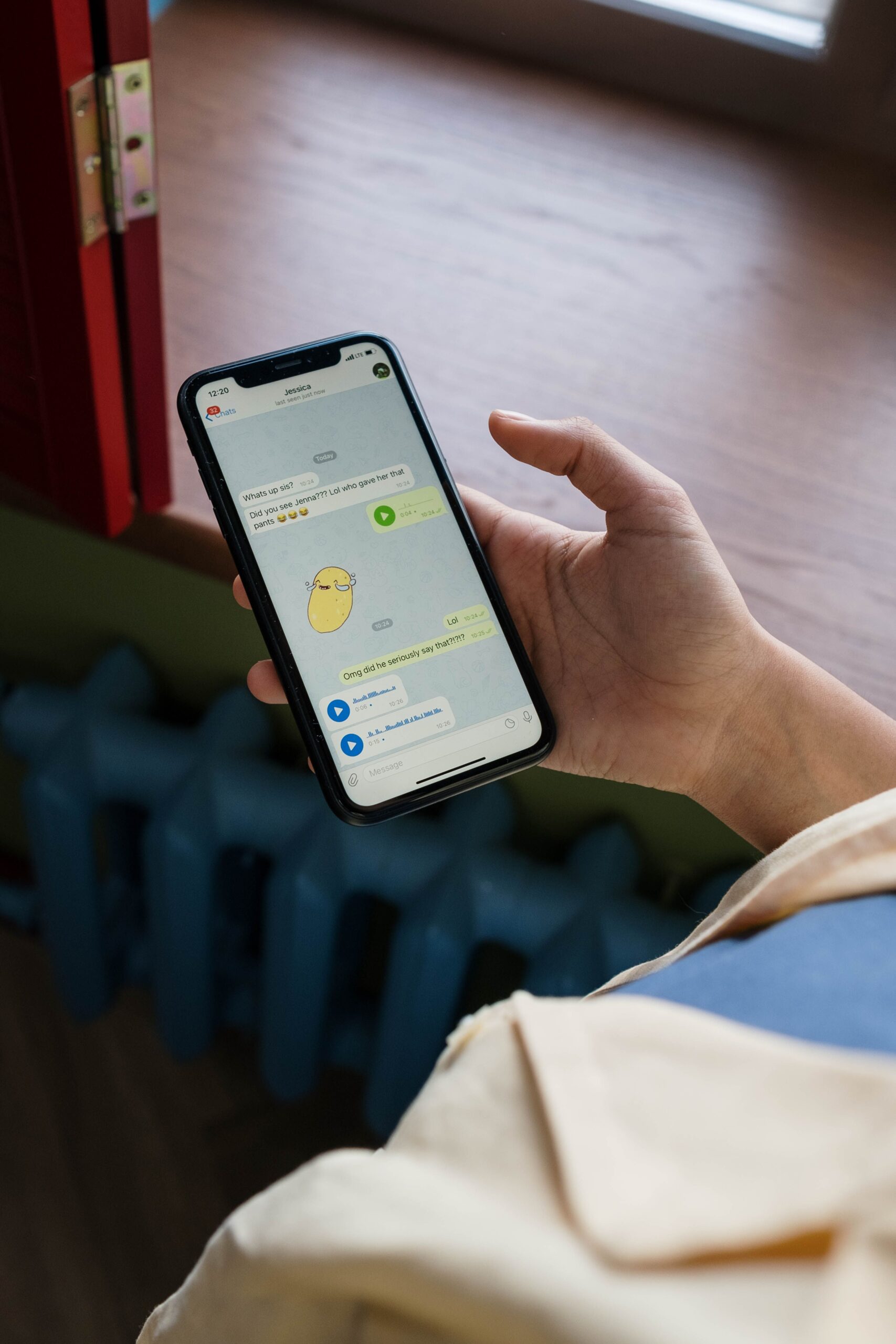
Slash commands as the no-dashboard alternative. Commands work from any text channel, and in the mobile app typing “/” brings up an autocomplete list of the bot’s commands that you tap to fill in. The core set, per the translation commands documentation, is /translate
Channel mode is the simplest of the four connection methods Interaction Bot offers. The guide to connecting Discord to translation on this site covers flag, category, and role modes too, and most servers combine two of them (for example, an auto-translate channel plus flag reactions in general chat).
What’s different on a phone versus desktop
The bot itself behaves identically; what differs is the phone’s handling:
- The OAuth page opens in a different browser. On desktop the invite opens in the browser you are already using; on a phone it may open in the app’s in-app browser or in Safari or Chrome, and it acts on whichever account is signed into that browser. The desktop guide on this site covers the same screen without that complication.
- Dashboard navigation collapses. The left-hand sidebar becomes a top-left menu button, which the dashboard documentation calls out explicitly for mobile users.
- Voice requirements are easy to break without noticing. The invite’s default permissions include four voice boxes (Connect, Speak, Use Voice Activity, Send TTS Messages) that let Interaction Bot read translations aloud in a voice channel, the text-to-speech feature its homepage advertises. On a small screen it is easy to untick one while tidying the list, and voice reading then fails silently. Leave them checked if you plan to use TTS.
- App hand-off. Some links trigger Discord’s in-app invite sheet. If you see an invite modal instead of the authorization page, you are holding a server invite, not a bot invite; use the bot’s own Add to Discord link.
Troubleshooting mobile-specific failures
The dropdown is greyed out, or my server is missing. Your account lacks Manage Server or Administrator in that server, or the browser is signed into a different account than you think. Check the account at the top of the authorization page first, then ask an admin for the role.
“Add to server” does not appear, or I only get a login wall. The browser is signed out, so Discord shows the login page instead of the server picker. Log in, or scan the QR code with the Discord app. If you get a server invite modal instead of the authorization page, the link is a normal invite; bots install only through the OAuth2 authorization link.
The bot joined but never translates. Usually one of two things: a permission was unticked during authorization (re-invite and leave the defaults), or the dashboard config was saved in the popup but the top-level Save was never tapped, so the server still runs the old configuration.
Short messages translate as the wrong language. The bot supports more than 100 languages and can misclassify very short or emoji-heavy messages, per the Interaction Bot FAQ. Raise the minimum length with /config detector
The bot shows offline. Check interaction-bot.com/status first; a red banner there means the translation service is down across every server.
From a phone, adding a translator bot is a ten-minute job: open the invite, approve only the permissions the bot actually needs, and set one channel to translate. If you later use a computer, the step-by-step is identical, and once the bot is in, the full setup guide on this site covers every dashboard panel. Pick your first channel, choose a target language, and save twice.
Published by interaction-bot.com.
Visit interaction-bot.comMade with AI.