Discord Text-to-Speech in Voice Chat: Bots That Read Chat Aloud, and What Works in Group Chats
Want Discord text-to-speech in a voice chat? Here is how TTS bots read chat aloud in a voice channel, what Discord's built-in /tts can and can't do, and the honest limits for group chats and DMs.

Discord text-to-speech in a voice chat works with a bot, and only inside a server voice channel. Install a TTS bot on your server, have it join a voice channel, and when someone types into its text channel (or runs a slash command), the bot reads the message aloud for everyone in that channel. That is the one reliable way to get chat read into a voice chat, because the bot literally connects to a Discord voice channel and plays audio through it. Direct messages and group chats are a different story: an ordinary server bot cannot read those messages at all, and text-to-speech inside them only exists through “user-installable” apps, which most TTS bots are not. This article walks through both scenarios and how to set up the one that works.
How TTS works in a server voice channel
A TTS bot turns typed text into audio and plays that audio through its connection to a Discord voice channel. The pipeline has four steps:
- A member sends a message in the bot’s configured text channel, or uses a slash command such as the /tts the bot exposes.
- The bot checks the rules: which channels or roles are allowed, message length, cooldowns, blocked terms.
- A speech engine, optionally after a translation step, turns the accepted text into audio.
- The bot queues the audio and plays it through its voice connection, so everyone in that voice channel hears the same playback.
Discord’s developer documentation describes the mechanism behind step 4: through the Gateway API, an app can manage voice state and connect to voice channels. The voice channel is what makes TTS broadcast shared rather than personal. Our guide to Discord text-to-speech bots walks through this same pipeline in the depth a server admin would want.
Interaction Bot is a concrete example. Its homepage describes the feature in one line: “Write a message and the bot will read it for you in a discord voice channel.” Its App Directory listing is more precise, showing the /tts command as “Send a message in a voice channel” and a /connect command described as “Connects the bot to a voice channel.” The homepage reports the bot is active in more than 55,961 servers.

That is the raw material of TTS: a waveform the bot streams into the voice room, not into one listener’s earphones.
Code With Swastik’s six-minute walkthrough shows the mechanics end to end: building a bot with discord.py, wiring it to the ElevenLabs text-to-speech API, then having the bot join a voice channel and speak a generated voice message.
The one-answer version: a bot connected to a voice channel is what gives you Discord text-to-speech in a voice chat.
Can a bot read messages in group chats and DMs?
Short answer: not with a normal server bot. And no bot at all, unless it is installed on the conversation.
A server bot is technically a member of your server. It can only read the channels you give it permission to read. Your direct messages and group chats are not part of that server, so the bot has no rights there and sees nothing. There is no “add this bot to a DM” flow the way there is for a server.
What exists is the opposite installation route. Discord’s developer overview explains that apps can be installed to servers or to user accounts:
| Install type | Where the app lands | What it unlocks |
|---|---|---|
| Guild-installed bot | Your server | Access to server channels, members, events |
| User-installed bot | Your account | Available in DMs, group chats, and any server |
That second row is the only path text-to-speech has into a direct message or group chat. On Discord’s App Directory, apps that support it show an “Add App” button (install to your account) alongside the familiar “Add to Server.” Interaction Bot’s directory listing has that Add App option, which means its slash commands can follow your personal account into DMs and group chats. Discord’s tutorial on developing a user-installable app explains how apps come to support both installation contexts.
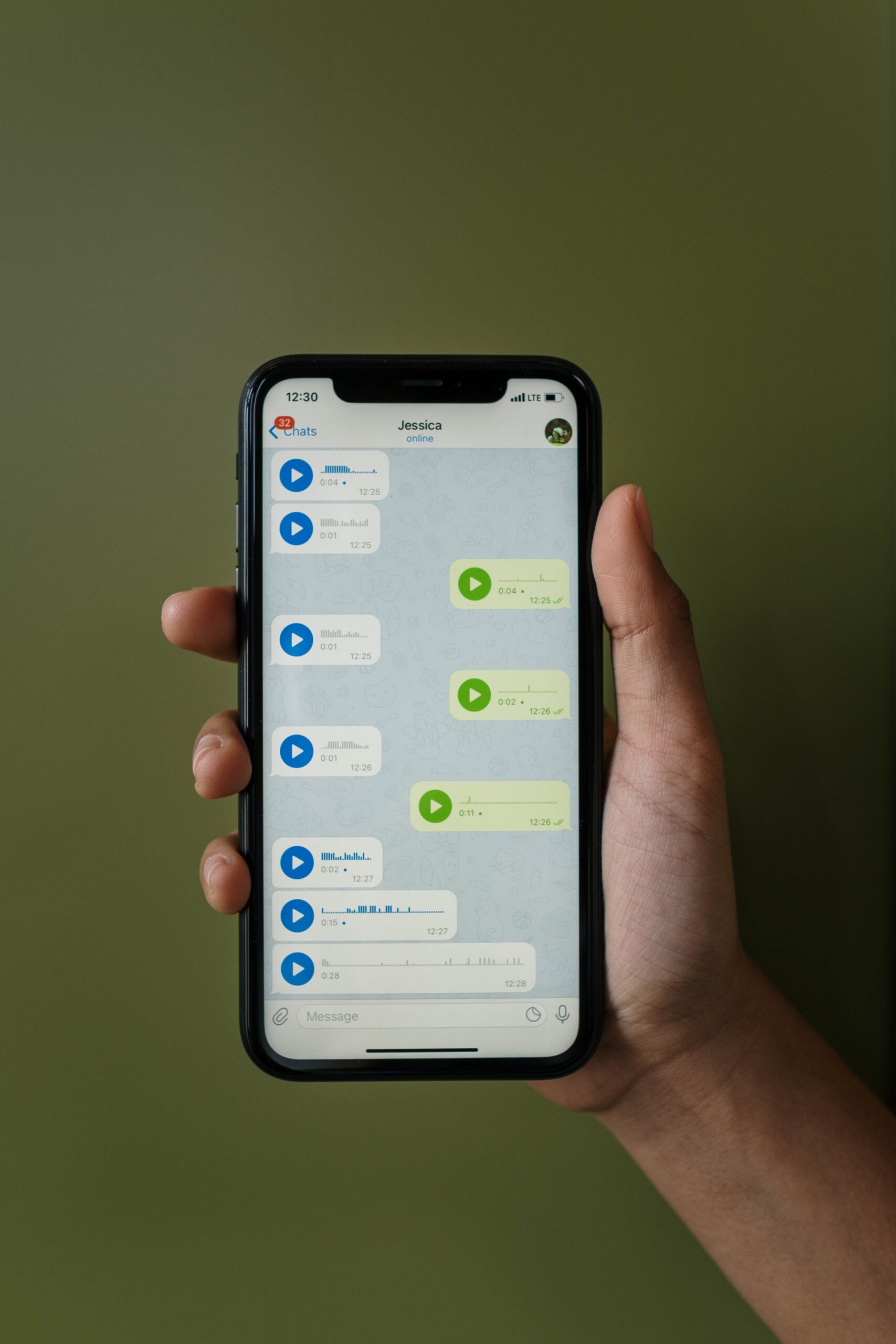
So “text to speech in a group chat” works in a narrow sense (a user-installed app can answer commands you run there) and not in the broadcast sense (chat read aloud to the whole group), because the audio side of TTS still needs a voice channel to play into.
Why Discord’s built-in /tts is not enough for a voice chat
Discord ships a native text-to-speech command. Type /tts followed by a message, and Discord reads that message aloud in the channel where you typed it. It is quick, needs no installation, and is documented in Discord’s official Text-to-Speech help article. But it is not a voice-chat tool, for three structural reasons:
- It plays in the text channel, not in a voice channel. It never joins or uses a voice channel at all.
- Who hears it depends on each listener’s own client. TTS playback is tied to per-user notification and TTS settings, so it is not guaranteed shared audio.
- It can be revoked per role or per channel. Discord models this as the “Send Text-to-Speech Messages” (SEND_TTS_MESSAGES) permission, which its permissions documentation describes as allowing “for sending of /tts messages.” Take that permission away from a role and the command goes silent for that role.
That last point is the per-guild limit that matters. The built-in command can be switched off by server administration and is optional for every listener. A bot in a voice channel is not optional in that way: once connected, it plays into the voice room for everyone, which is exactly why servers that rely on TTS use a bot instead of the native command.
Bot TTS features that matter
If you are choosing a TTS bot for a server voice channel, these are the features worth comparing, and the ones Interaction Bot bundles:
| Feature | Why it matters |
|---|---|
| Selectable voices | Members hear a voice they understand; language learners can practice a target accent |
| Language coverage | A multilingual channel can speak to each audience in its own language |
| Translate before speaking | A Spanish message stays visible while an English translation is spoken, as our guide to breaking language barriers shows |
| Queue and message-length limits | When several people type at once, the bot speaks them one after another instead of cutting itself off |
| Permission control | Only chosen roles trigger speech, and the bot itself needs little more than view channels, send messages, connect, and speak |
The translate-then-speak step is what turns a TTS bot into a multilingual voice channel: detect or select the source language, translate the text, then choose a matching voice. Our explainer on how automatic translation bots work on Discord covers the detection and translation stages behind that pipeline.
Review what the bot asks for. Interaction Bot’s directory listing requests, among other things, “Send TTS Messages,” “Connect,” “Speak,” and “Use Voice Activity,” which is a normal set for a voice TTS bot. Only grant Administrator to a product that clearly explains why it needs it.
How to set up TTS for a server voice channel
The exact commands differ between bots; the steps do not:
- Open the bot’s App Directory listing or official site and choose Add to Server (or the equivalent invite button).
- Select your server and review the permission screen. A voice TTS setup needs at minimum View Channels, Send Messages, Connect, and Speak.
- Create a dedicated text channel, for example #tts-text, and restrict it with Discord’s channel permissions so only trusted roles can use it.
- Connect the bot to the voice channel where you want speech to play. Interaction Bot’s /connect command exists for exactly this.
- Configure defaults (voice, language, volume, message length) in the dashboard or with the bot’s setup command.
- Test with a short sentence, then check pronunciation, volume, queue behavior, and latency before opening it to the whole server.
Our full Discord text-to-speech bot setup guide works through each of these steps in more depth, including guardrails such as cooldowns and blocked terms.
Text-to-speech in DMs and group chats: the honest limits
If you want TTS with friends outside a server, here is the state of things:
- You can install a user-installable app onto your account, and Discord’s docs say those apps work “in DMs, group DMs, and any server.” Interaction Bot’s directory entry is one example that offers the Add App route.
- No app reads a DM or group chat you did not install it on. Each participant has to authorize the app for themselves, and it only sees the conversations it was actually installed into.
- TTS broadcast still needs a voice channel. TTS bots are built around connecting to a server voice channel and playing audio there, and there is no equivalent channel for an app inside a DM or group chat. Reading chat aloud into a personal call is not something current TTS bots provide.
- Latency is real even where TTS works: synthesis plus voice delivery adds a beat or two between the message and the speech. Announcements should be short; it is not live conversation.
- Pronunciation of names, slang, and mixed languages is imperfect. The written message is the reliable record, which is why a sensible setup keeps the text visible next to the speech.
That is why the practical advice points back to servers: if voice chat is the goal, make a small server for you and your friends, put a TTS bot in a voice channel, and type there. That is where text-to-speech in a voice chat actually works.
The short answer
For text-to-speech in a voice chat, use a TTS bot in a server voice channel: invite it, connect it to the channel, and type. Discord’s built-in /tts can be switched off per role and only plays for listeners who have it enabled, so it cannot replace a bot for shared audio. For group chats and DMs, the honest answer is narrower: only apps installed to your account can act there at all, and none of them broadcast chat aloud into a call, because that requires a voice channel. If your real need is reading the messages in a group chat, a translation bot is the tool that actually fits, since translation works on text anywhere a bot can read it.
Published by interaction-bot.com.
Visit interaction-bot.comMade with AI.