How to Translate Discord Messages: 5 Methods Compared
Five realistic ways to translate a Discord message, ranked from quickest to most automatic: copy-paste into Google or DeepL, Discord's built-in translate, a /translate command, flag reactions, and auto-translate.

The answer first, briefly
If you want to translate a Discord message in 2026, you have five realistic options, and the right one depends on who you are translating for. To read a single message, copy it into Google Translate or DeepL, or use Discord’s own built-in translate. To help a whole channel, add a translation bot and choose between a /translate slash command, flag-reaction translation, or automatic channel translation. That split matters more than the tools themselves: Discord’s built-in option is per message and per reader, so the moment a translation needs to appear for everyone in a channel, the job belongs to a bot. In one sentence for the impatient: copy-paste yourself is fastest for one message, a bot is the only realistic way to do it for a server, and automatic channel translation is the most hands-off of the bot methods.
Method 1: copy the message into Google Translate or DeepL
How it works: select the Discord message text, copy it, paste it into Google Translate in your browser or its mobile app, and copy the result back. Google’s own help page describes entering a word or phrase and choosing the from and to languages; Google’s product page adds a shortcut that matters on a phone, copy text in any app and tap to translate without the manual paste. DeepL behaves the same way on deepl.com or through its apps: paste the text, pick the target language, copy the result.
Effort: under a minute per short message, repeated by hand every time. Cost: free. Both services cover a large share of the world’s languages, with DeepL marketing 100-plus on its translator page. Best use: a one-off message, a DM from a friend who wrote in their language, or any situation where you are a member with no server powers.
The limit is obvious the moment the conversation moves: every message means a fresh copy, paste, and copy back, and the translation is private to you, so nobody else on the server sees it. For occasional use that is fine, for a fast multilingual chat it is not.
Method 2: Discord’s built-in translate (one message, one reader)
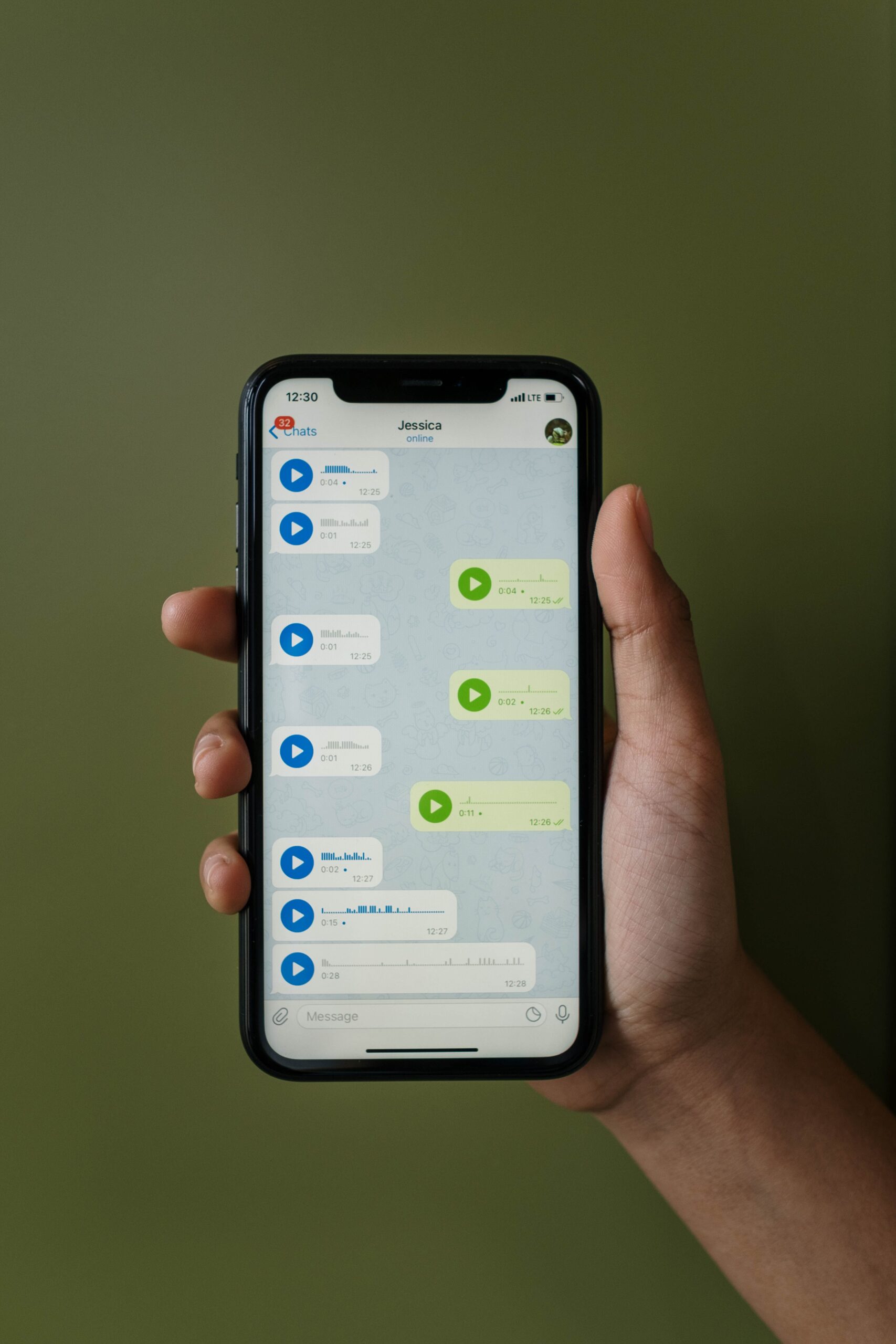
How it works: when people ask “can Discord translate messages,” the accurate answer is, partially. Discord’s own translation can translate a single message you are looking at, and the client shows you a private copy in your client’s language. As of August 2026 it remains per message and per reader: it does not run automatically, it does not appear for anyone else, there is no server setting that switches it on, and availability still varies by account. It is a built-in option rather than a /translate slash command.
Effort: two or three clicks every time you need it, with zero setup. Cost: free, it ships with Discord. Best use: reading one message you will not need again, such as a DM or a single quoted reply in a support thread.
Where it stops: it is text-only and it has no server policy at all. Nothing an admin can configure will make Discord translate a channel for the community, which is exactly why the methods below start where this one ends. Our article comparing Discord translator bots against Discord’s built-in translation covers the two side by side.

Method 3: a bot’s /translate slash command
How it works: with a translation bot on the server, any member types /translate <message> <language> and the bot replies in the same channel. The command takes the text directly: /translate ¿A qué hora empieza? English. Two commands sit around it and are worth knowing, /detect <message> tells you the source language when you are not sure, and /languages lists every language the bot supports so nobody guesses.
Effort: one slash command per message, with no dashboard configuration at all. Cost: most translation bots start free; the two pricing extremes in the market are a capped free tier that resets through voting (iTranslator) and one-time character packs you spend down (TranslateBot). Best use: a server where translation is occasional, or a fallback for channels where automatic translation is not enabled. Because it needs no setup, it is also the quickest bot method for a server that is not ready to commit to a translation rule. Our guide to on-demand translation commands covers the full command reference, including how /translate, /detect, and /languages work together.
Method 4: flag-reaction translation
How it works: an admin enables it once. In the bot dashboard, open Translation, then Flag Translation, pick the channel to watch, switch it on, and choose a sending mode, either translate on every new reaction or only the first reaction per message, with an optional auto-delete that removes the bot’s answer after a short delay. From then on, members translate any message by reacting with a flag emoji: a French flag brings a French translation, a Japanese flag a Japanese one.
Effort: a few taps in the dashboard once, then one emoji reaction per saved message for members. Cost: a free tier typically covers flag translation. Best use: open channels where most members already share a language, so that only the occasional message needs a bridge. It is the lowest-noise translation method, because nothing happens until someone actually asks.
The dashboard walkthrough in our guide to connecting Discord to translate walks through this exact screen, including the each-time versus one-time choice and the auto-delete option.
Method 5: automatic channel translation
How it works: an admin adds a per-channel rule with three fields, the Channel the bot watches, the Sending Channel where translations appear (choose the same channel for an inline multilingual conversation, or a separate channel for a clean feed), and the target Language. When a member posts, Discord notifies the bot over its Gateway connection, an always-open WebSocket, and the bot runs a short pipeline: read the text, detect the source language, translate it into the configured target, and post the result back as a reply, embed, or webhook message. That is why a translation appears a second or two after someone presses Enter, and why it feels automatic rather than requested.
Setup is a one-time cost with a famous trap: you save the configuration popup and then the page, and if you skip the second save the rule never goes live. Category-wide and role-based rules apply the same idea to a whole section of channels or to one audience sharing a language, which is the pro setup for large servers. The screens named here are from Interaction Bot’s dashboard, the bot this site’s guides use as their working example, which reports translating into over 100 languages across more than 55,000 servers.
Effort: about five minutes of configuration, then nothing per message. Cost: free tiers exist and heavier usage tends to sit on paid plans. Best use: a channel where several languages mix, a support room, or any server where the whole community needs to keep up with one conversation.
This is the method our automatic translation guide walks through end to end, from inviting the bot to testing with real messages, and the setup guide covers the same flow for per-channel, category, role, and flag rules at once. For what happens behind the scenes, the deep dive into Discord translate integration explains the event pipeline, the Gateway, and how a translation API fits into it.
Gehsture’s 2025 walkthrough of an automatic translator bot shows an always-on setup handling both channel translation and direct messages in practice:
The five methods compared
| Method | Effort per message | Server setup | Cost | Best for |
|---|---|---|---|---|
| 1. Copy into Google/DeepL | Copy, paste, copy back | None | Free | One-off messages and DMs |
| 2. Discord’s built-in translate | A couple of clicks | None | Free | A single message you want to read now |
3. Bot /translate command |
One slash command | Invite a bot | Free tier typically | Occasional translations on your server |
| 4. Flag-reaction translation | One emoji reaction | One dashboard rule | Free tier typically | Open channels where most share a language |
| 5. Automatic channel translation | Nothing, it just happens | One channel rule | Free tier, paid for volume | Channels where several languages mix |
What should my server use?
Work through the four questions that separate the methods in practice:
- Are you a member, not an admin, and it is one message? Copy it into Google Translate or DeepL, or use Discord’s built-in translate. Nothing to install, nothing to configure.
- Do you run the server, and does one channel mix several languages? Automatic channel translation is the default answer. Start with a single channel, not the whole server, and let people get used to the rhythm before you widen it.
- Is your server mostly one language with the occasional foreign message? A
/translatecommand and flag reactions are the lightest fit, and most servers use both, commands for specific messages and flags for anything in a shared channel. - Do you have several sections, each with its own audience? Apply category-wide or role-based rules so every room gets the language it needs without per-channel duplication.
One governing idea stays the same at every volume: treat machine translation as an accessibility layer, keep the original message visible, and let moderators or fluent members correct anything that matters, because idioms, slang, and names are exactly what machine translation gets wrong. Automatic translation is the strongest tool in this list, and it still is a first pass, not a native speaker.
If you are still deciding between the bot-based methods, start with the one that matches your channel structure: a single busy general channel points to automatic translation, an open community channel points to flag reactions, and a support server points to automatic translation per channel with /translate as the fallback. The five methods are not rivals, most servers end up running two or three of them at once.
Published by interaction-bot.com.
Visit interaction-bot.comMade with AI.