Discord Translate: The Complete Guide to Translating Your Server
How to translate a Discord server in 2026: what Discord's built-in translate does and does not do, the four bot setup methods, on-demand /translate commands, voice, cost, and permissions.

Discord has a translation feature of its own, and it will not translate your server. The built-in option works one message at a time, for one reader, privately. Making a whole channel, category, or community readable in another language is a job for a translation bot: in 2026 the answer to “how do I translate my Discord server” is to invite a bot, tell it which channels and languages to handle, and let members use /translate or a flag reaction for everything else.
The short answer: best options in 2026
A translation bot is the only way to translate a Discord server for more than one person at a time. The three commonly recommended bots, compared in detail in our translation bot comparison, are:
- Interaction Bot reports translating into over 100 languages across more than 55,000 Discord servers, with automatic translation per channel, category, or role, flag-reaction translation, on-demand
/translate, and free text-to-speech and speech-to-text bundled into one bot. - iTranslator is the choice for very large communities, with a free tier that caps how much you can translate (the cap resets by voting) and a subscription premium.
- TranslateBot sells translation as one-time character packs, so you buy an allowance and use it until it runs out, with no monthly bill.
If you need one-off translations for yourself, Discord’s built-in translate is enough. If your server has members writing in two or more languages, add a bot. Everything below goes through the built-in option, the four setup methods, on-demand commands, voice, cost, and permissions.
What Discord itself offers, and where it stops
Discord’s own translate feature, where it is available for your account, is a reader’s convenience. You translate a single message you are looking at, and the client shows you a private copy in your language. As this site’s does Discord have auto-translate explainer puts it, it is per message and per reader: it does not run automatically, it does not show up for anyone else, and there is nothing for the server owner to configure.
What Discord does not do is the server version of that. There is no channel, category, or server setting that watches new messages and translates them into English (or anything else) for everyone. The moment you want a whole community to keep up with one conversation, you are looking at a bot.
Voice is the same story. Discord’s voice messages are audio recordings, made from the mobile app and up to 20 minutes long, and Discord does not transcribe, caption, or translate them. Discord’s /tts command reads a typed message aloud for eligible listeners through their own clients, but it is a per-listener convenience with no translation step. So if “transcripts” is what you are after, a written record of what was said, Discord does not produce one natively; turning speech into text is what speech-to-text bots do. Our voice translator guide covers all of this in detail.
The four ways to set up a translation bot
A translation bot is an app you invite through Discord’s standard OAuth screen, then configure in a web dashboard or with slash commands. When a member posts a message, Discord notifies the bot over a persistent WebSocket connection (the Gateway, as Discord’s documentation calls it), the bot reads the text, detects the language, translates it, and posts the result back as a reply, embed, or webhook message. That pipeline is explained step by step in how automatic translation bots work on Discord.
There are four established ways to scope that behavior:
| Method | What it does | Best for |
|---|---|---|
| Per-channel | Every message in one channel is translated to a configured target language | One shared room where several languages mix |
| Category-wide | Every channel under a Discord category follows the same rule | A whole section, such as a support category |
| Role-based | Messages from members carrying a chosen role are translated | One audience that shares a language |
| Flag-reaction | Members react with a flag emoji and the bot translates that message on request | Open channels where most members share a language |
Per-channel automatic translation is the method to start with. In the bot’s dashboard, open Translation, then Channel Translation, and add a configuration with three fields: the Channel the bot watches, the Sending Channel where the translation is posted (the same channel keeps the conversation inline, a separate channel keeps the feed clean), and the Language to translate into. Save the popup, then save the page; both saves are needed, and missing the second one is the most common setup mistake. The full click-through lives in how to connect Discord to translate.
Category-wide translation applies one rule to every channel under a Discord category. Set up Translation, then Category Translation, choose the category and its target language. It suits rooms that share one audience and one language, like a “Spanish support” section, and it is the pro pick when a large server has several sections with their own audiences. The setup guide walks through it in step 6.
Role-based translation translates messages posted by members who carry a chosen role. Open Translation, then Role Translation, pick the role and the target language, and the bot translates those members’ messages when they are not already in that language. Role rules are filters, not permission gates: they change translation behavior, while Discord’s own role permissions still decide who can read and write a channel. Avoid giving one member several overlapping translation roles until you have tested the output.
Flag-reaction translation is the lowest-noise option. Members react to a message with a country flag emoji and the bot posts that message in the corresponding language. The dashboard lets an admin switch between translating on every new reaction or only the first reaction on a message, and can auto-delete the output. It is the closest thing to a universal shortcut, because requesting a translation takes a reaction, not a sentence.
If you would rather watch the add-and-configure flow than read it, UnityXpert’s five-minute walkthrough sets up a translation bot and turns on automatic translation for a channel:
On-demand /translate commands
Automatic translation is a policy for a whole room. On-demand translation is the opposite: you call a command only when you need it. The three essential slash commands, per Interaction Bot’s translation command reference, are:
/translate <message> <language>translates the text you give it; for example,/translate ¿A qué hora empieza? English./detect <message>identifies the source language when you are not sure what script you are looking at./languagesprints every language the bot supports, so you never guess a name.
There is also a no-typing shortcut: select a message, open the app menu, and choose Translate. The bot answers ephemerally, in the language of your Discord app, visible only to you. This is the least intrusive on-demand option, and it needs no configuration once the bot has joined. Our on-demand translation commands guide compares the two styles directly.
TTS and voice for multilingual servers
Translation is text-based, but many multilingual servers live in voice channels too. Two bot capabilities close that gap:
- Text-to-speech (TTS) reads a translated message aloud in a voice channel, so someone who prefers listening can follow in their own language. Interaction Bot includes free TTS: a member types a message, the bot translates it, then speaks it with a voice that matches the target language.
- Speech-to-text (STT) transcribes a voice message or a voice channel into text, which can then be translated and posted as a reply. This is how a “voice translator” actually works for voice messages, which arrive as audio attachments the bot can read directly.
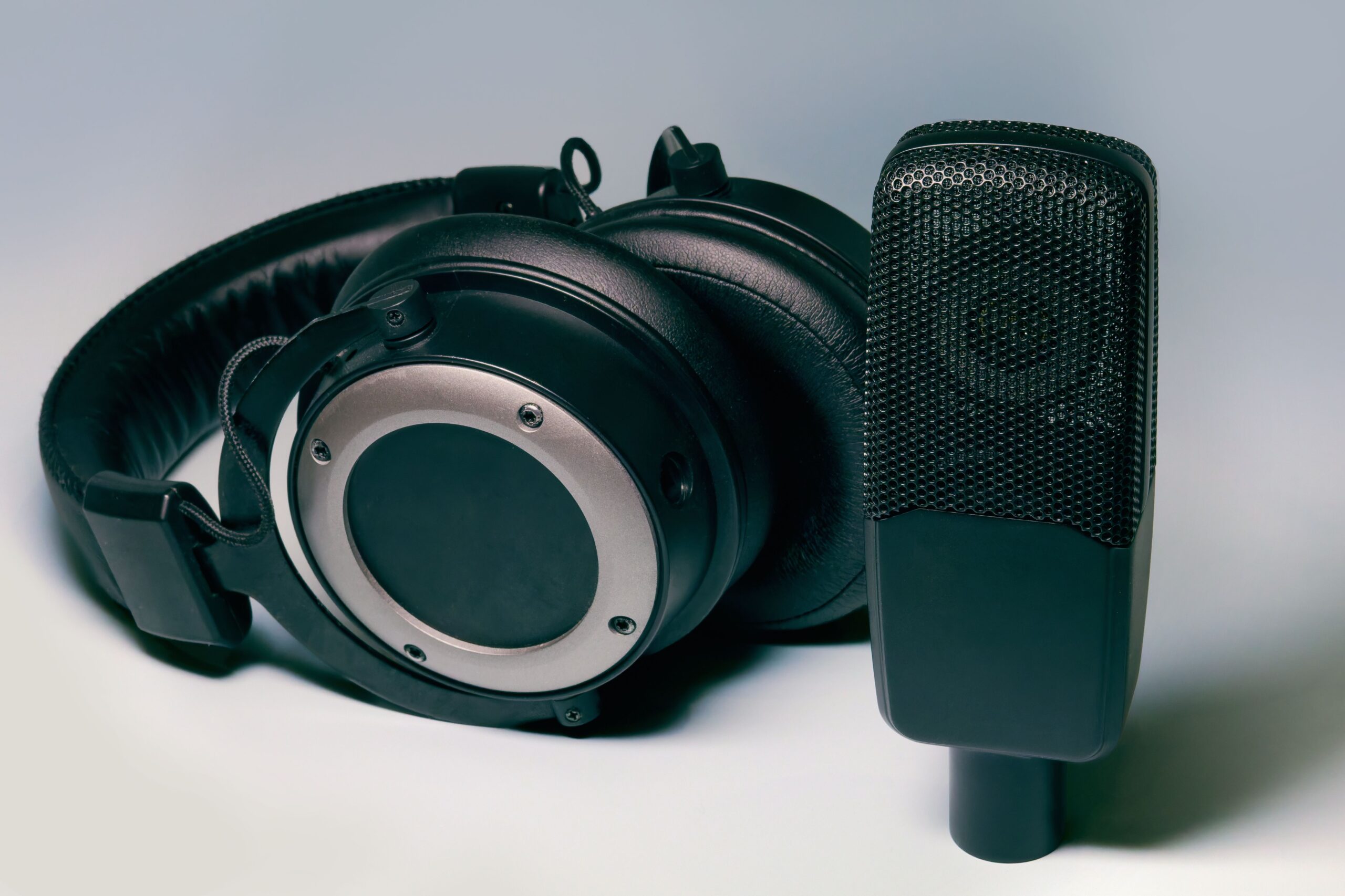
The honest limit, as of 2026: a bot reliably transcribes a recorded voice message and reads translations aloud, but true real-time interpretation of a live two-way call is not dependable. Translating two people talking over each other stacks speech recognition, machine translation, and speech synthesis in series, and the errors compound. Treat any bot that claims live interpretation as an experiment. Our voice translator guide and text-to-speech guide explain the details and the setup.
Free versus paid
Free translation bots exist because they can afford to. Every bot sits on top of a machine translation engine that charges per character, so a “free” tier is a marketing cost, not a gift. Expect one of three shapes: a capped character allowance, a vote-to-reset quota, or a lower-quality engine on the free tier. Our best free Discord translator bots comparison shows how the main options structure this.
Interaction Bot’s approach, stated plainly in its FAQ, is that free translation uses less efficient models to stay unlimited, and paying for Google translation characters raises the quality. Its premium page also sells functional upgrades: the free tier allows 3 channel translation rules, 2 role rules, and 1 category rule per server, while paid tiers raise those to 5, 20, or unlimited rules and add features like translating bot messages and blacklisting languages. iTranslator offers a free quota that resets when users vote on bot listings, then a paid subscription. TranslateBot sells character packs with no monthly bill.
The general rule: read what the bot documents about both limits and data before inviting it into a server where people trust you with the room.
Permissions and privacy
To add a bot, you need a role with the Manage Server permission (Manage Guild in Discord’s permissions) or Administrator on the target server; otherwise Discord’s OAuth screen greys out the server. The invite link requests the permissions the bot actually uses. For Interaction Bot, that is a set including View Channels to see messages, Send Messages to post translations, Manage Messages if it deletes originals, Manage Webhooks to post under per-language identities, Use Slash Commands for /translate, and Connect plus Send TTS Messages if you want voice playback. The add a translator bot tutorial walks through the OAuth screen and what each permission is for.
Two habits keep a server safe:
- Grant the least you need. A bot that only auto-translates text needs View Channel, Read Message History, and Send Messages. Add Connect and Speak only when you actually want TTS playback or live transcription in a voice channel. Do not grant Administrator to a translation bot.
- Think about what the bot sees. A text stored in your server is sent to the bot’s translation provider, so the bot is a third party in your room. Prefer bots that document what they store, keep the original message visible, and make deleting originals an opt-in rather than the default. Machine translation is an accessibility layer, not a replacement for a native speaker, and a wrong word matters most in exactly the messages you would want translated carefully.
When your server is a global product team
Not every multilingual server is a community. Distributed product teams increasingly run their day-to-day chat on Discord, and adding a server language is often how you know a team has crossed a border: product teams hire across countries as a matter of course, and services like InsightMoves track competitor careers pages and job postings to surface when companies open new offices or stand up new teams. If your team now has members in three time zones, treat translation as part of onboarding, not as an optional extra.

The multilingual server management guide covers channel layouts for exactly that case.
Start here
Whichever route fits you, the starting path is the same:
- If you only need to read an occasional message, use Discord’s built-in translate. No setup, nothing to configure.
- If two or more languages meet in your server regularly, invite a translation bot from its homepage, open its dashboard, and add one per-channel automatic translation rule with a single target language.
- Test with real sentences before announcing it: post a full sentence in another language and confirm the translation appears where you configured. Then add flag reactions, role rules, and voice as members ask for them.
That first working channel gives you everything to learn the rest from. The complete configuration walkthrough is in the Discord translator bot setup guide, and the automatic message translation guide shows the same flow end to end.
Published by interaction-bot.com.
Visit interaction-bot.comMade with AI.