Discord reaction roles bot: let members self-assign roles in one click
Members keep asking for roles and you hand them out one by one. Post one message with emojis, buttons or a dropdown menu instead. Members self-assign roles with a click, and click again to drop them.
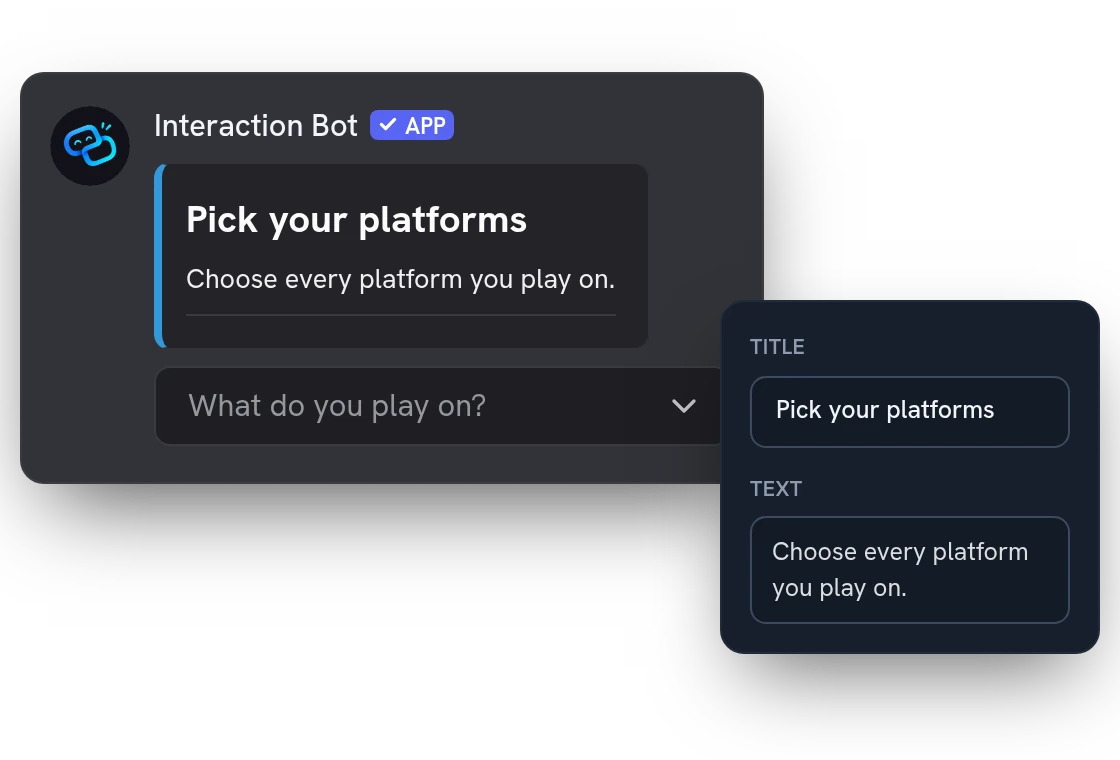
Design your reaction role message with a live preview
Write the title, text, fields, images and colors in the dashboard, with a live preview that looks like Discord. When it looks right, publish it in any channel.
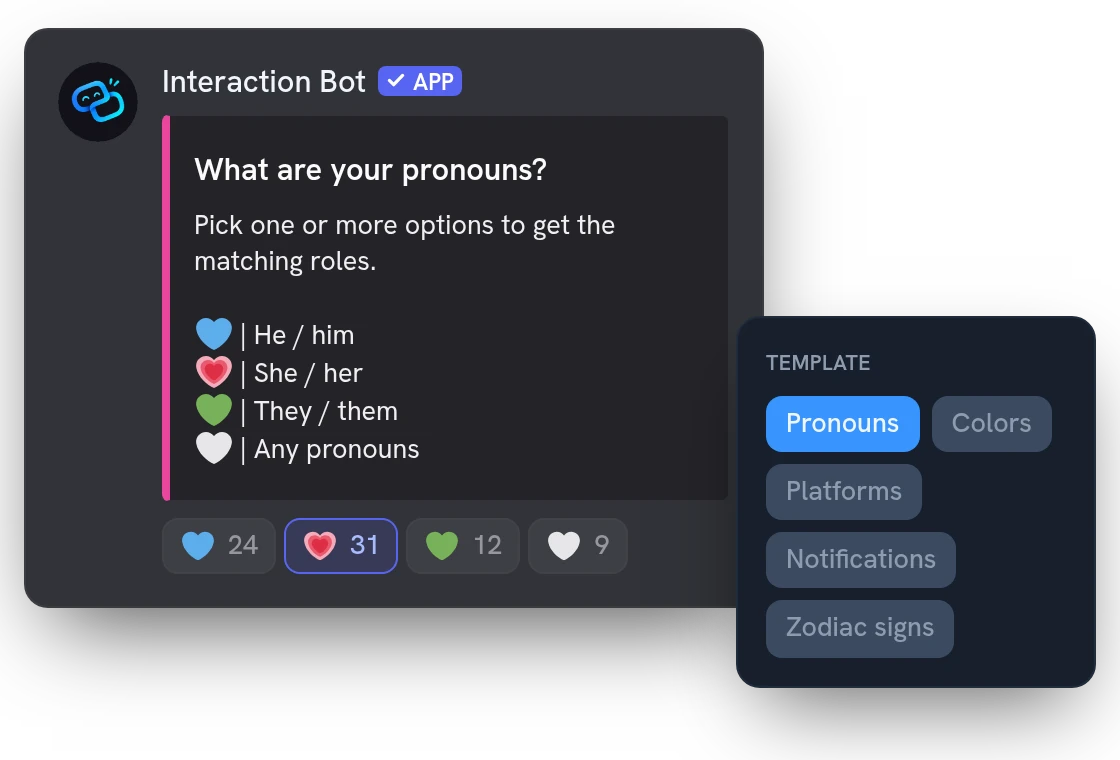
Start from a ready-made reaction roles template
Pick pronoun roles, color roles, platform roles, notification roles or zodiac signs, and the choices, emojis and text are filled in. The bot creates the roles your server does not have yet.
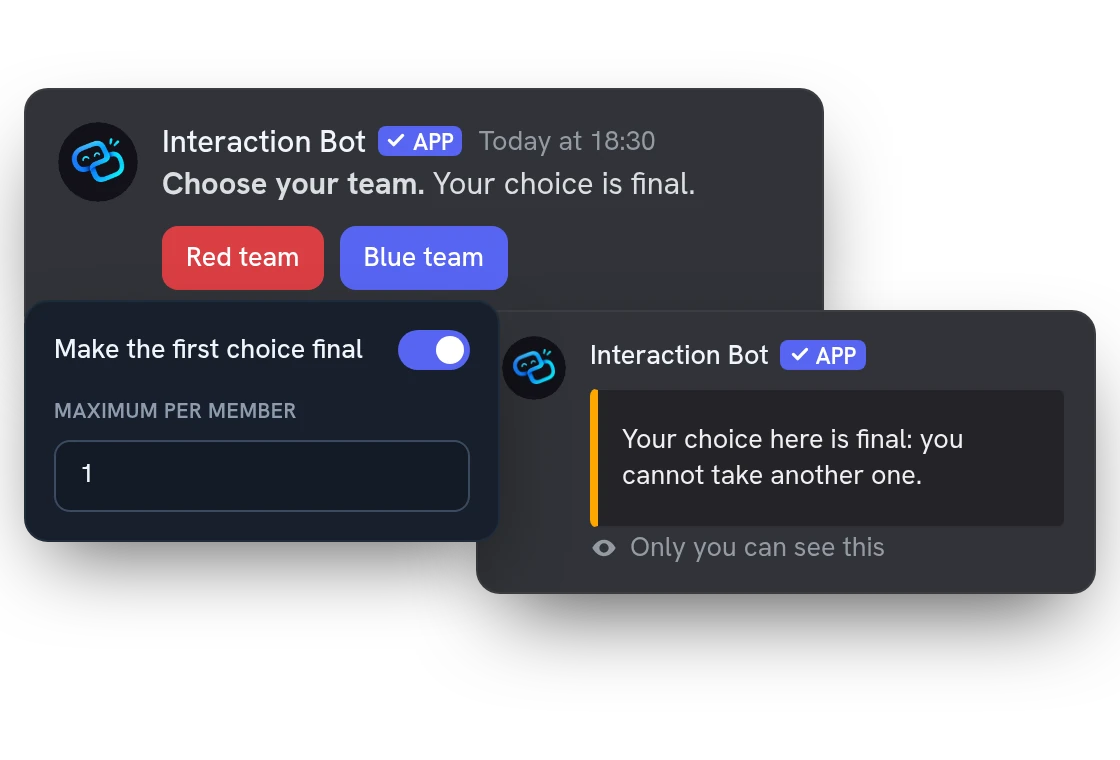
Let members pick one role or several, and limit who can
Let members hold only one role at a time, or several, or set a maximum per member. Make the first choice final, for teams. Limit a panel to members with certain roles, or block those with others.
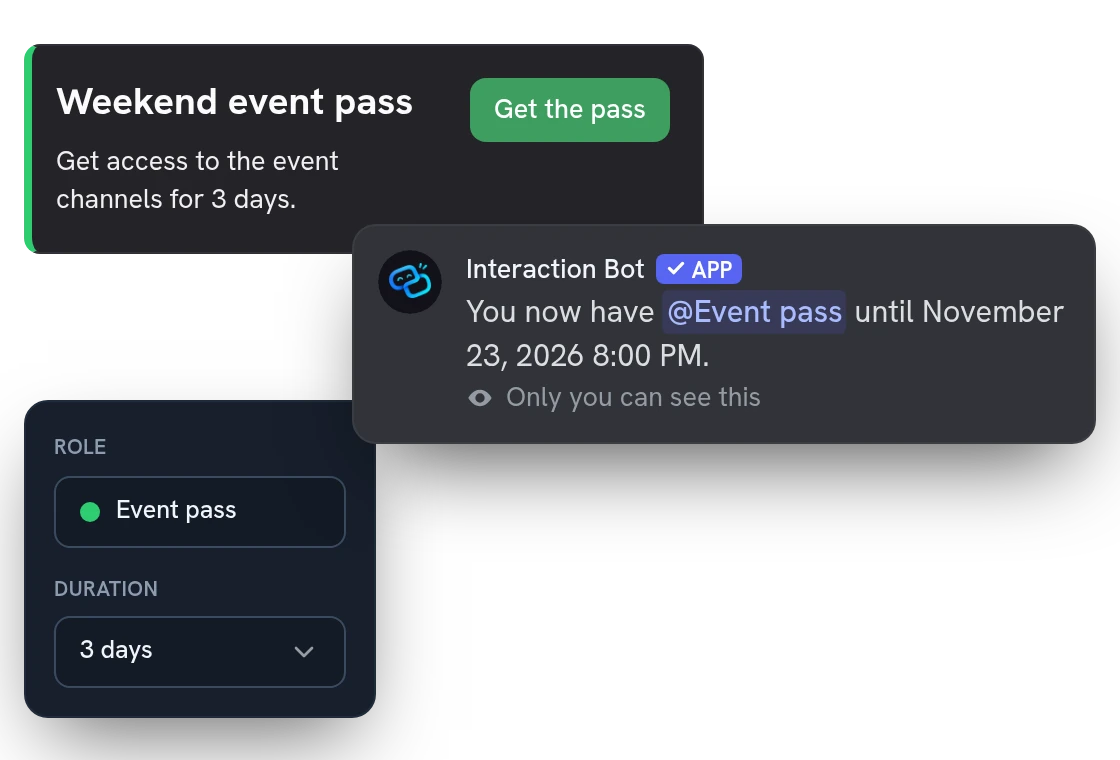
Give temporary roles that expire on their own
Set a duration on any choice, from 1 hour to 30 days, and the bot takes the timed role back by itself. Use it for event passes, trial access or a weekend channel.
All features
Emojis, buttons or a dropdown
Pick the style: up to 20 emoji reactions, or up to 25 buttons or dropdown choices on a single message.
Several roles from one choice
One click can give up to 10 roles at once, for example a team role and the role that opens its channels.
Give-only or remove-only panels
A panel can only give roles, or only take them away, so clicking again never undoes the choice.
Reactions that work backwards
On an emoji panel, adding the reaction takes the role and removing it gives it back, handy for opt-out channels.
Reactions on a message you posted
Turn an existing message into a role panel by pasting its link: the bot adds the emoji reactions to it.
Your own replies, even as a card
Write what the bot says when a role is given or removed, as text, an embed or a card, with the role and member name.
Only safe roles can be handed out
The bot refuses roles with moderation or admin rights, and the dashboard refuses roles you could not give yourself.
Keeps working after a restart
Buttons, menus and the timers of temporary roles carry on after the bot restarts, so no role is left behind.
Colored buttons, emojis and descriptions
Color each button, add an emoji and, in a dropdown, a short description under each choice.
Turn a panel off or duplicate it
Pause a panel without deleting it, or copy it to start another one in a few clicks.
Missing pieces flagged before publishing
The dashboard tells you what is missing, such as a channel, a role or an emoji, before the panel can be published.
Questions about Reaction roles
Is the reaction roles bot free?
Yes, on every server. You can create 50 panels (one panel is one role message), each with up to 20 emoji reactions or 25 buttons or dropdown choices, and up to 10 roles per choice.
How do I set up reaction roles on Discord?
Open the dashboard, build a panel (one role message), add your choices and the roles they give, then publish it in any channel. Edit it later and the message updates in place. Delete it and it leaves Discord. Members keep their roles either way.
Can I add reaction roles to a message I already posted?
Yes, with emojis. Choose Existing message in the dashboard, paste its link, and the bot adds the reactions to it. Buttons and dropdowns need a message the bot posts itself.
Why is the bot not giving the role?
The bot needs the Manage Roles permission, and its own role must sit above the role it gives. It also refuses roles managed by an integration and roles with dangerous permissions such as administrator or ban members, so a click never makes someone a moderator. The dashboard flags each case before you publish.
Will the bot spam my channel with replies?
No. Buttons and dropdowns answer only the member who clicked, and emoji reactions answer by private message. You can switch to a message in the channel that disappears after 30 seconds, or to no reply, and write your own texts.
You might also like
Flag translation
Translate any message with a flag reaction, or let the bot add 1 to 5 flags under every message of a channel. No setup needed.
Anti-spam honeypot
A trap channel that no member writes in: spam bots that post there are punished automatically.
Discord Activity
Launch the Interaction Bot activity in a voice channel: live transcript, live translation, recording and playback, in one panel.

Try it on your server
Add Interaction Bot in one click and set it up from the dashboard.
 Add to discord